Skip to main content
Adding Filters to a Report in LeadConduit
- Create a new report or edit an existing one.
- Select the ‘Select Filters’ header. The menu will expand if closed, and close if already expanded.
- Select the ‘Add Filter’ button and open the dropdown menu.
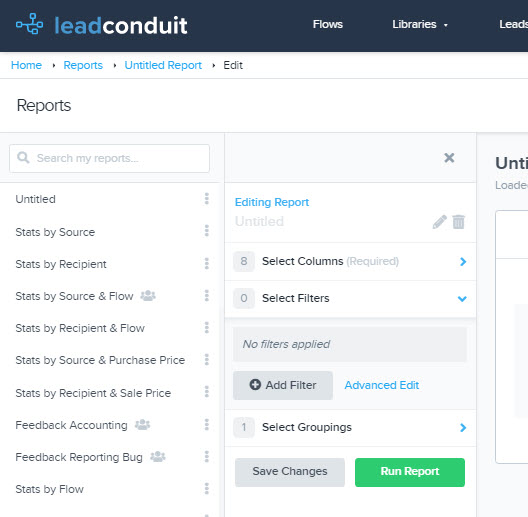 5. Select a category from the menu that appears.
- Once you select a category, an additional menu will appear presenting you with filtering options.
- Select an option.
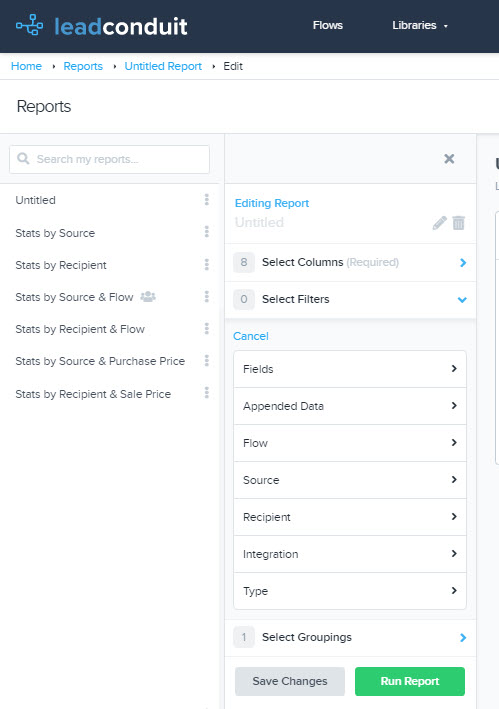 9. If you change your mind, select the gray back arrow that appears to the left of your selection.
- Select an operator.
- Type or select the values you’d like to use for your filter.
- Select the green ‘Add Filter’ button.
- Your new filter will be represented below the ‘Select Filters’ option on the report menu.
- Select the ‘Advanced Edit’ option to configure multiple filters at once.
- When ready, update, run, or save your report.
Was this article helpful?
0 out of 0 found this helpful

Comments
0 comments
Please sign in to leave a comment.